← Back to Knowledge Base
business and technology5 min read

Where to start with Zoho CRM? — A practical guide for the end user

No settings — daily workflow: lead management, task tracking and step-by-step transactions

May 26, 2026
Where to start with Zoho CRM? — A practical guide for the end user

Key Takeaways

  • 1The Zoho CRM home page is the control center — from where you check open tasks and high-priority leads at the start of each work day.
  • 2Every activity in Zoho CRM takes place within one of the four main modules: Leads, Contacts, Accounts and Transactions.
  • 3Custom views such as 'leads that have not been contacted for over 7 days' save hours of manual scrolling.
  • 4The conversion step automatically creates a new contact, account and deal with one click — three entities from one lead.

If you are new to Zoho CRM and wondering what exactly you are supposed to do in the system throughout the day — this guide was written for you. Unlike tutorial videos that focus on system settings, this guide focuses on what an end user needs: managing leads, tracking tasks, sending emails and promoting deals effectively.

Home page: Your control center

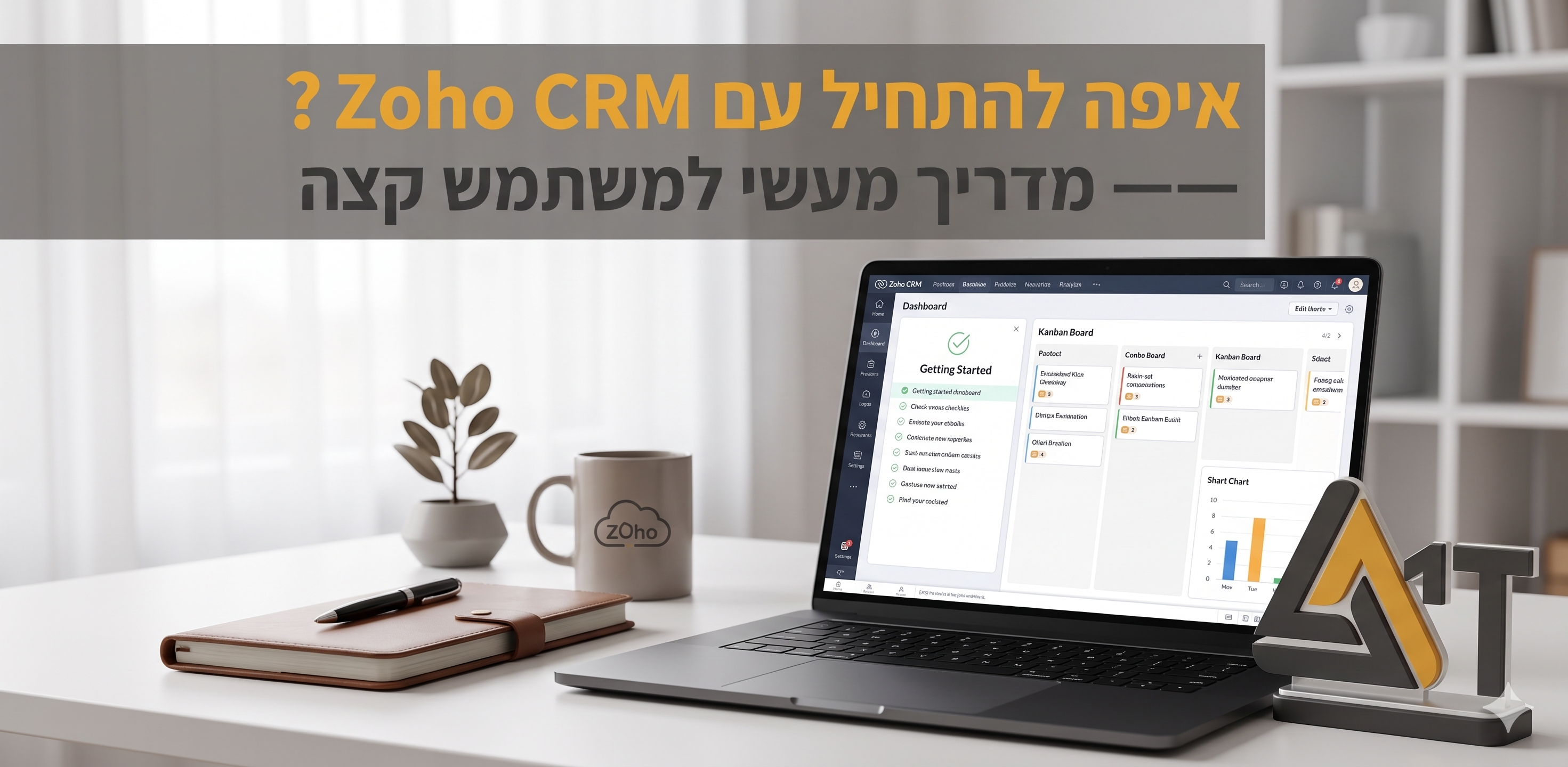
The home page is the first point of every working day. There you will find three main elements:

  • Dashboards: show your sales funnel and data you have defined as important.
  • High Priority Lead Lists: Leads that have been generated or associated with you and require handling.
  • Open tasks: the list that drives your agenda — go through it first to prioritize the next actions.

The leads module: the first step in the funnel

Leads are unscreened potential customers—people you might do business with. Think of them as digital business cards. Correct working practices with leads:

  • Filter leads through calls, emails or meetings; Or mark them as 'not ready' to postpone the application until the right time.
  • Add critical information before each meeting — early research makes each contact significantly more effective.
  • Document every touchpoint: tasks, notes and emails — all visible to the team.

Contacts, accounts and transactions

As soon as a contact is filtered and found suitable, it becomes a contact and is associated with the company (Account). It is important to remember: each account (company) can have several contacts, but each contact is linked to only one account. In the B2C model - the focus is on the contact and not on the account. Deals are where the real sales work happens:

  • A transaction is created on the fly and gathers all the information related to the specific opportunity.
  • The transaction is promoted according to pre-defined sales stages - from the drawing to the signature.
  • Track the income potential through the amount and estimated closing date fields.
  • Use quotes to send structured pricing to customers.

Tasks: Your daily game plan

Tasks are the tool that ensures that no lead 'falls through the cracks'. Why are they critical:

  • Visible in one place throughout all leads, contacts and transactions.
  • The managers see your activity in real time - what has been done and what is waiting.
  • Task creation can be automated — for example, an automatic pullup task the day after each meeting.

Sending emails and tracking communication from within the CRM

You can send and track emails without leaving the CRM at all:

  • Sending directly from any record (lead, contact, transaction) — the history is saved automatically.
  • Using email templates with dynamic fields (first name, company name) — especially effective for follow-up automation.
  • Monitoring of openings, clicks and returned messages - to know who read and who didn't.
  • Integration with Zoho Desk allows you to see all correspondence with the client in one centralized place.

Customized views and filters — to work smart, not hard

Don't waste time on endless scrolling — create custom views that show exactly the records that are relevant to you. Examples of displays that should be set:

  • "Leads that have not been contacted for over 7 days" — leads that may go cold.
  • "Deals that close this month" — to prioritize closing efforts.
  • "Customers with whom there was no contact for six months" — old cross-sale opportunities.
  • "Deals for renewal in the coming week" — proactive management of contract renewals.
  • "Opportunities by specific salesperson" — performance management at the individual level.

Lead conversion, reports and dashboards

As soon as a lead has been filtered and is ready for treatment (it is recommended to use the BANT methodology for screening), a conversion is performed: the lead becomes a contact, his company becomes an account, and a new transaction is created that is linked to both - all in one operation. To manage the extended snapshot:

  • Reports: Row and column tables - excellent for checking status and filtering specific data.
  • Analytics: graphs and charts — excellent for identifying trends and forecasts.
  • Zoho Analytics (part of Zoho One): for combining metrics from multiple data sources in one dashboard.

Conclusion

The 1T Solutions team implements Zoho CRM for businesses in Israel with fixed-price projects, end-user training in Hebrew and ongoing support after going live. Contact us for a free characterization call.

#Zoho CRM#A beginner's guide#Zoho Israel#Lead management#Sales automation#small and medium businesses#end user

Want to turn this knowledge into a system that works?

At 1T Solutions we design and implement systems that connect your business, team and technology.

Frequently Asked Questions

A lead is an unverified prospect - a person who has shown interest but has not yet been screened. Once the lead is filtered and proven to be relevant, it becomes a contact (the person) associated with the account (his company). In B2C where you sell to private individuals - everything is managed around the contact person, and the accounts module is neutralized.

yes. By enabling IMAP integration, the system synchronizes incoming and outgoing messages from Gmail, Outlook, etc. — and saves them automatically under the relevant customer card. This way all the correspondence is concentrated in one place even if it was sent outside the system.

Go to the home page and check the open tasks - they drive the agenda. Then check new incoming leads and update statuses of deals in progress. A short morning routine of 10-15 minutes ensures that no opportunity falls through the cracks.

Click on the 'Convert' button on the lead card. The system automatically creates three new entities: a contact (the person), an account (the company) and a transaction (the opportunity). The conversion mapping determines where each field will be routed to - therefore it is important that the conversion mapping is defined correctly in advance by the system administrator.

Custom View is a saved filter that displays only the records that meet the criteria you set. Create one by clicking 'Create View' in each module, setting filters (for example: creation date, status, association with a salesperson), and saving the view with a name. After that it always appears in the side menu.

yes. From each record (lead, contact, transaction) you can send an email directly, choose from ready-made templates with dynamic fields and track opens and clicks. The email is automatically saved under the record and allows any team member to see the full history.

Reports are tables based on rows and columns - suitable for checking status, specific filtering and data export. Analytics is a graphical display — suitable for identifying trends, comparing periods and forecasts. To combine data from different sources in one dashboard, Zoho Analytics (included in Zoho One) is the right solution.

Interested in more details?

Talk With Us!